Smart Accounting Hub for QuickBooks Online (QBO) multi-user access
PERMISSIONS Security level with the QuickBooks Extension Admin setting enabled and API impersonation permissions.
NAVIGATION Left Navigation Menu > Admin > Extensions & Integrations > Smart Accounting Hub > Settings > Users
Overview
The Smart Accounting Hub for QuickBooks Online supports a streamlined, permission‑aware user management experience that is tightly integrated with Autotask security levels.
This page focuses on:
-
Automatically creating users when provisioned from Autotask via OneClick setup. Refer to Connecting to the Smart Accounting Hub for the first time for more information.
-
Inheriting elevated permissions from Autotask into the Smart Accounting Hub so you don’t have to reconfigure access twice.
-
Allowing multi‑user management (activate/deactivate users, adjust elevated permissions) directly from the Users menu in the Smart Accounting Hub.
-
Enforcing strict access control so only users with the correct Autotask permissions can access full features of the Smart Accounting Hub.
 Prerequisites
Access to the Users page requires the same prerequisites as access to Smart Accounting Hub. However, only users granted elevated permissions within Smart Accounting Hub can manage other users. All access is validated against Autotask security levels.
Accessing the user permissions page in the Smart Accounting Hub
To access the Users page in the Smart Accounting Hub:
-
In Autotask, navigate to the Left Navigation Menu > Admin > Extensions & Integrations > Smart Accounting Hub.
-
Select Settings, Sync Status, or Activity Logs to open the Authorization page.
NOTE If authorization has already been granted, the system will bypass the authorization prompt and redirect you directly to the Smart Accounting Hub. However, users may be prompted to reauthorize at any time, and reauthorization may be required more than once. Refer to Connecting to the Smart Accounting Hub for the first time for more information.
-
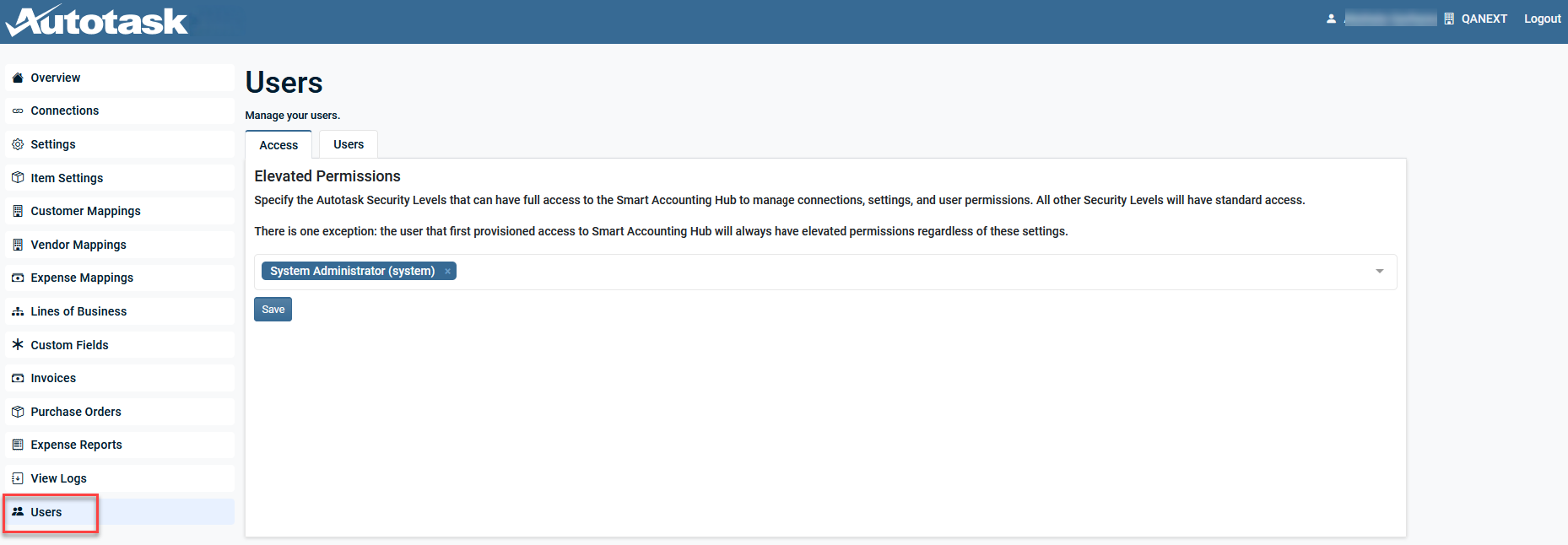
From the left navigation menu, select Users.
Configuring user permissions
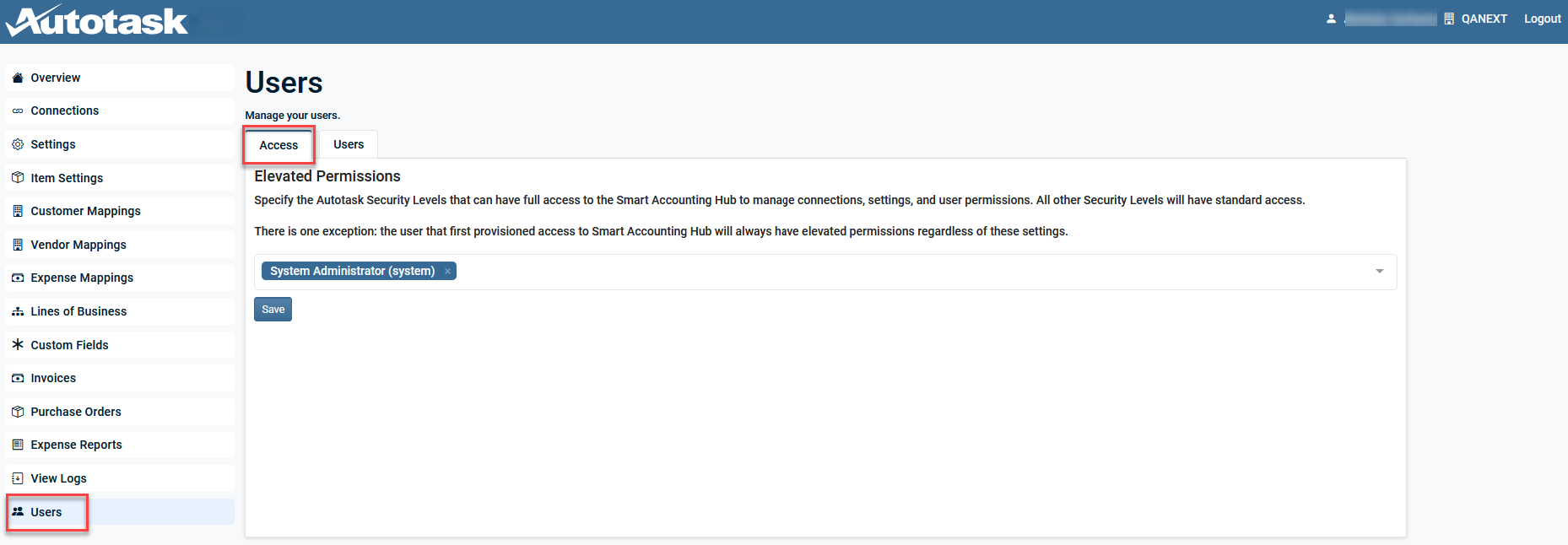
The Access tab centralizes user access and permission management for Smart Accounting Hub. It allows you to define which Autotask security levels are granted full access to Smart Accounting Hub, including connections, configuration settings, and user permissions.
NOTE Security levels not explicitly assigned will retain limited access.
To assign an Autotask security level for full access:
-
From the left navigation menu, select Users.
-
Select the Access tab.
-
In the Elevated Permissions section, use the drop-down menu to search for a security level by typing its name, or scroll to manually select one. Repeat for each security level to be added.
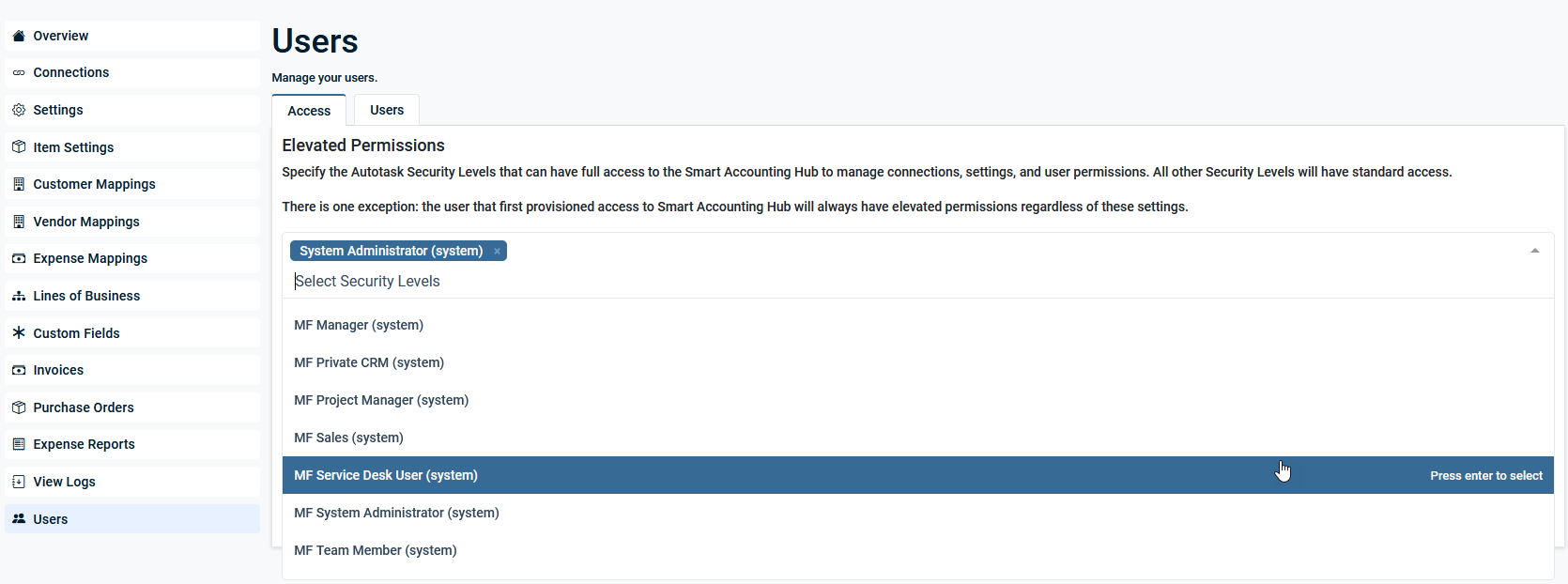
NOTE Available security levels are retrieved directly from the connected Autotask instance.
-
Select Save.
Managing existing users
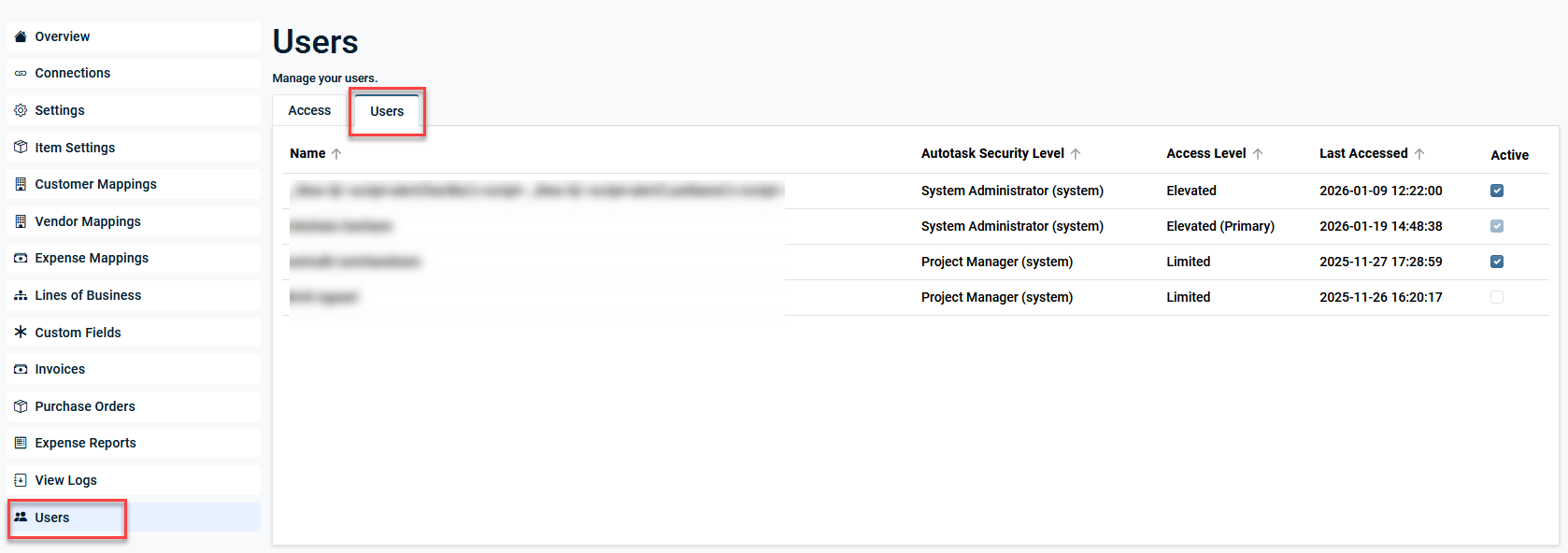
The Users tab lists all Smart Accounting Hub users and lets elevated users (including the Primary user) manage who has access to Smart Accounting Hub, which access level each user has, and whether a user’s account is active or inactive.
NOTE Only users who have signed in to Smart Accounting Hub at least once will be displayed.
The list of users can be sorted by Name, Autotask Security Level, Access Level, and Last Accessed.
To activate or deactivate a user in Smart Accounting Hub:
NOTE Only users with elevated permissions can change another user's active status. Refer to Configuring user permissions.
-
From the left navigation menu, select Users.
-
Select the Users tab.
-
Locate a user’s row and, in the Active column, update the checkbox as needed: clear the checkbox to deactivate the user, or select the checkbox to activate the user. Upon selection, the change is saved automatically.
IMPORTANT Deactivating a user in Smart Accounting Hub does not deactivate the user's Autotask account.
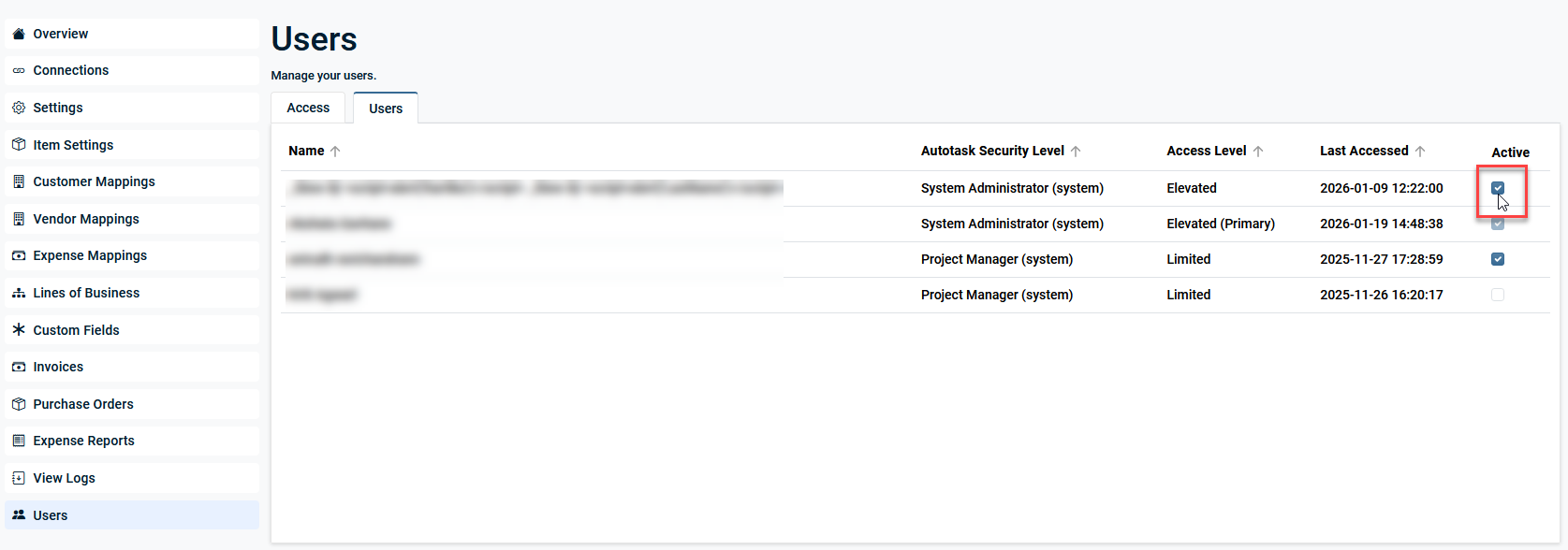
NOTE Users with elevated permissions cannot deactivate themselves.
Frequently asked questions
Who can access the Smart Accounting Hub?
Only active Autotask users whose security level meets the Smart Accounting Hub requirements can access the Hub. Refer to Smart Accounting Hub for QuickBooks Online (QBO).
What is the Primary user, and how is it created?
The Primary user or the "Master" user is the primary administrator for the Smart Accounting Hub. The Primary user is created automatically the first time the Smart Accounting Hub is accessed from the Autotask menu.
This user’s elevated permissions are inherited directly from their Autotask Security Level.
You cannot manually create, edit, or assign a Primary user from within the hub.
What is the difference between limited access and elevated permission?
Limited access is the minimum level of access a qualifying Autotask user can have to Smart Accounting Hub.
Users with limited access can typically:
-
Sign in to Smart Accounting Hub.
-
View information and review results relevant to their work (for example, read‑only views of sync status, or basic summary data, depending on your configuration).
-
Perform non‑administrative, day‑to‑day tasks that do not affect global settings or other users.
-
Manually sync invoices, purchase orders, and expenses.
Elevated permissions are for any user who will administer Smart Accounting Hub.
Users with elevated permissions can typically:
-
See and use the Access and Users tabs.
-
Grant or revoke Smart Accounting Hub access for eligible Autotask users.
-
Adjust elevated permissions for other users (within the limits of each user’s Autotask Security Level).
-
Activate and deactivate other users’ Hub access.
-
Manually sync invoices, purchase orders, and expenses.
-
Manage global or high‑impact settings (for example, integration configuration, accounting mappings, and similar options, depending on your environment).
Does elevated access require an “Administrator” license type?
No. Elevated access to Smart Accounting Hub is controlled by your Autotask Security Level permissions, not by the license label alone. To qualify for elevated access, a user’s Security Level must:
-
Allow access to the Smart Accounting Hub menu, and
-
Have both admin access checkboxes enabled for QuickBooks Extension and Other Extensions & Tools.
In many Autotask environments, these permissions are only granted to administrator‑type roles, but any security level that meets these criteria can be used.
Does a limited access user only view data, or can they view log files?
A limited access user can:
-
Sign in to Smart Accounting Hub (if their Autotask Security Role allows access to the Hub).
-
View the data and pages that their Autotask role permits (for example, sync status, certain summary data, or other non-admin views).
-
View log details.
A limited access user cannot:
-
See or use the Access tab.
-
See or use the Users tab.
-
Perform any user-management or configuration actions.
Why can’t I deactivate myself on the Users tab?
This is expected behavior. Users with elevated permissions in Smart Accounting Hub cannot:
-
Deactivate their own user account, or
-
Remove the elevated permissions that allow them to access the Hub.
This safeguard prevents accidental lockouts of key administrators, including the Primary user.
If you need your access removed:
-
Another user with elevated permissions must deactivate you on the Users tab, or
-
Your organization’s Autotask administrator must change your Security Level or deactivate your Autotask account. Refer to Managing existing users.
Can I give someone the same level of access as the Primary user?
You can grant another user equivalent elevated access, but you cannot change their role label to “Master user” in the UI.
From the Access or Users tab, a user with elevated permissions can:
-
Grant hub access to eligible Autotask users.
-
Configure their elevated permissions so they can perform the same day‑to‑day actions as the Primary user, provided their Autotask security level allows it.
What happens when I deactivate a user in Smart Accounting Hub?
When you deactivate a user on the Users tab:
-
The user can no longer sign in to Smart Accounting Hub.
-
Their historical data (such as activity logs and sync history) is retained for reporting and audit purposes.
-
You can reactivate the user later without recreating their account, as long as they still meet the Autotask security level requirements.
IMPORTANT Deactivating a user in Smart Accounting Hub does not deactivate the user's Autotask account.
What should I do if my access suddenly stops working?
If you lose access unexpectedly:
-
Verify your Autotask account
-
Confirm that your Autotask user is still active.
-
Check whether your Autotask security level has changed.
-
-
Check your status in Smart Accounting Hub
-
Ask another elevated user or your administrator to:
-
Confirm that you are still listed on the Users tab.
-
Verify your status is active.
-
Confirm that your elevated permissions are still assigned.
-
-


